Commun error message with VulcanControl.dll
After installing a Photoshop extension you get the following error:
"System error. The program can t start because VulcanControl.dll is missing from your computer. Try reinstalling the program to fix this problem."
Solution:
The Creative Cloud Cleaner Tool allows you to more precisely remove installation records for Creative Cloud or Creative Suite applications that may have become corrupted or may be causing problems with a new installation. It can be particularly helpful if you have installed prerelease software on your system, and now want to remove it.
If you’re having trouble installing Creative Cloud apps, Creative Suite (CS3–CS6) apps, Photoshop Elements, or Adobe Premiere Elements, the Adobe Creative Cloud (CC) Cleaner Tool can help. Likewise, if you're unable to connect to Adobe servers, the Cleaner Tool can help by removing entries in your computer's host files that are blocking access to Adobe software and servers.
Run the CC Cleaner Tool for Windows
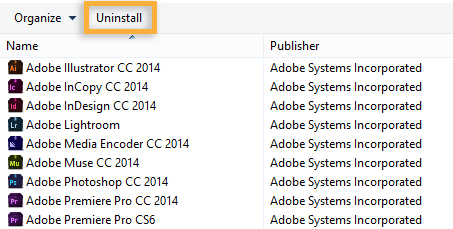
-
Click the following link to download the Adobe Creative Cloud Cleaner Tool for Windows: AdobeCreativeCloudCleanerTool.exe.
-
Right-click the downloaded AdobeCreativeCloudCleanerTool.exe file and choose Run as Administrator.
If you can't locate the downloaded file, see Find your downloaded Adobe app or file.

Note:
If Run as Administrator is not available when you right-click, double-click AdobeCreativeCloudCleanerTool.exe to run the EXE file.
-
- Choose your language: Type e for English or j for Japanese, and then press Enter.
- Review the Adobe End-User License Agreement: Type y to accept or n to decline (if you decline, the script stops). Press Enter.
- Type the number that corresponds to the option you want to select and then press Enter. For example, type 4 (CC Apps) if you want to uninstall a Creative Cloud app.
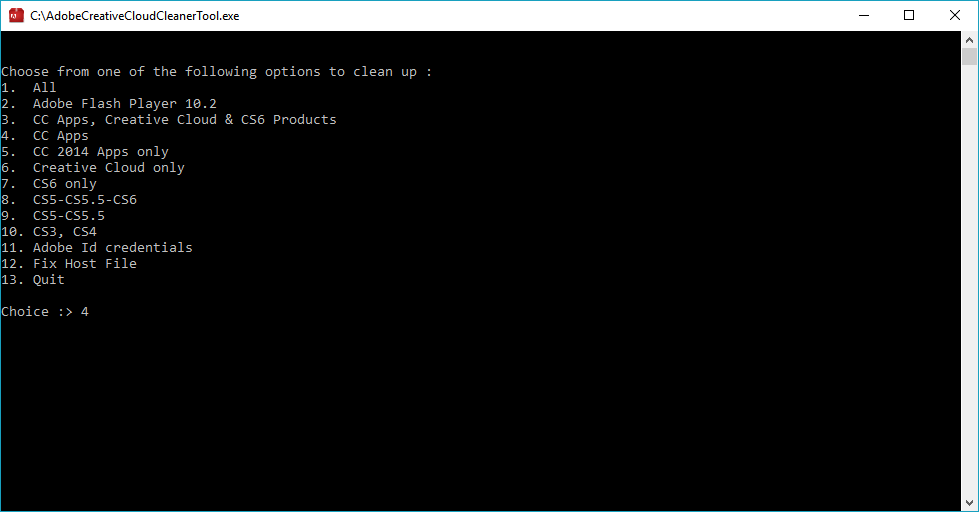
- From the list of applications for the selected option that appears on the screen, select the application that you want to remove by typing the number that corresponds to the app name and then press Enter.
- Confirm that you want to remove the product: Type y and then press Enter.
- (Optional) If you're unable to connect to Adobe's servers, repeat these steps to fix your host files. After accepting the End-User License Agreement, type 12 to select the host files option. Confirm that you want to fix the host files: Type y and then press Enter. The Cleaner Tool creates a backup of the hosts files (named hosts_bkup) in the same directory, which you can revert to if a problem occurs.
-
Review the log file entries. If any of the entries indicate failure, contact us.
-
Once you have successfully run the Adobe CC Cleaner Tool, install your Creative Cloud or Creative Suite application. For instructions, see one of the following documents:
- Download your creative cloud apps (Creative Cloud)
- Creative Suite 6 installation instructions (CS6)
- Install Adobe Creative Suite 5 or 5.5 (CS5.5 and CS5)
- Creative Suite Help (CS4 and earlier)
Sofware
VulcanControl.dll is used by the following software:
- Adobe Audition CC 2017
Comment
VulcanControl.dll has been seen in the following path:
- C:\Program Files (x86)\Common Files\Adobe\CEPServiceManager4\VulcanControl.dll